


Introduction
With SharePoint Online staying dry under the umbrella of M365, its deep integration with OneDrive, Teams, Office, and many other Microsoft productivity apps has only given organizations more and more ways to collaborate effectively. Users can easily share files via links that have built-in security and expiration across the enterprise and beyond.
However, there are still minor functional gaps among these technologies that require a developer’s touch to adhere together, like how a simple bead of caulk around a window can keep the rain out. In this quick post, I’d like to present a solution to a challenge that seems to leave a lot of Microsoft Learn and StackOverflow forum questions unanswered.
The Problem
When sharing a link to a file in a SharePoint document library – weather collaborating in a Teams channel, browsing to a site collection, or working locally in OneDrive or Office on your machine – the URL generated doesn’t reveal the path to the underlying physical location. Our scenario here is a custom app that consumes M365 content via these shares, checks if certain users can access it, and, if so, downloads the content for a Microsoft Foundry agent to consume. While the details of the app are out of scope for this post, I want to share the core mechanism that opens the door to this functionality.
Sharing Scenarios
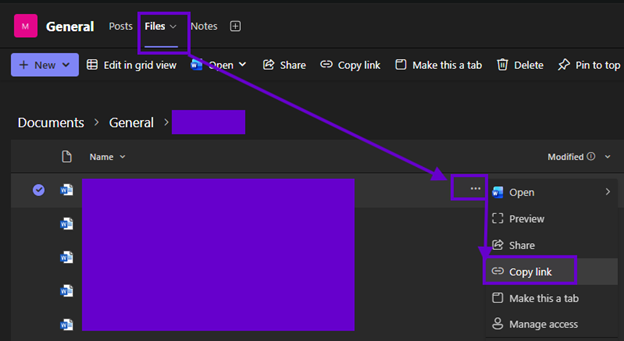
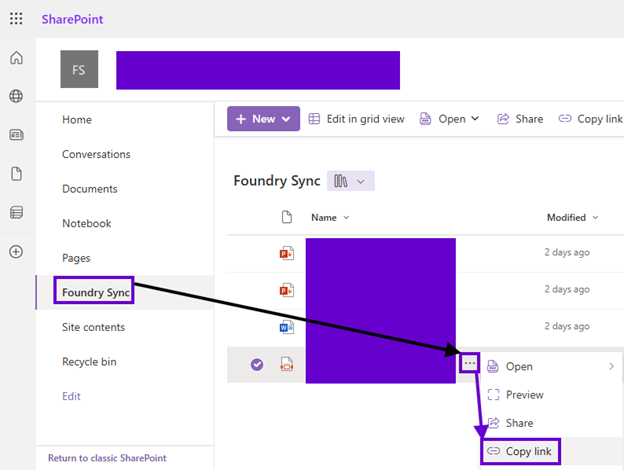
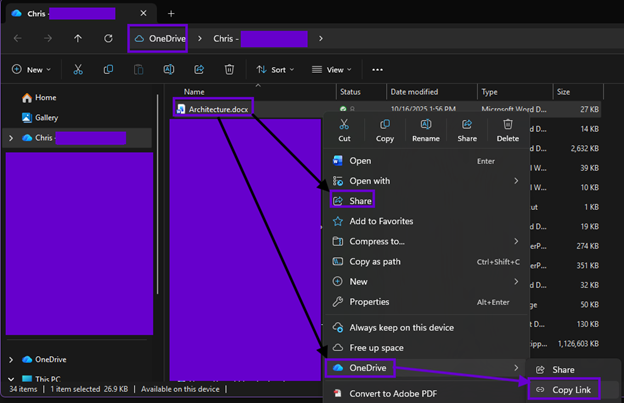
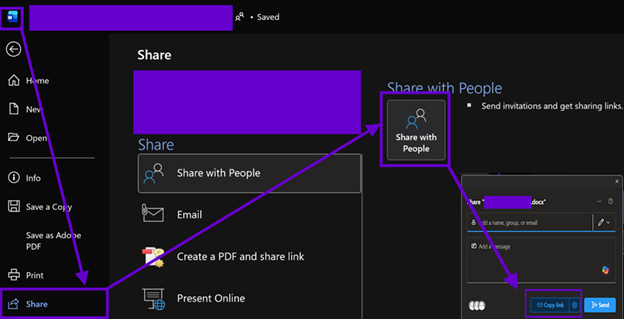
As you can see from the screenshots below, the surface area of this challenge is quite large looming over the vast M365 ecosystem. Microsoft has done a great job unifying common experiences (such as file sharing) across apps and collaboration workspaces.
Teams
SharePoint
OneDrive
Word
M365 URLs
The conventional structure of undomesticated SharePoint file URLs in the wild is well defined as follows. It seems like code should be able to reasonably parse it and make decisions based on the context...
https://<tenant>.sharepoint.com/<sites or teams (or omitted for the root)>/<site>/<document library url fragment>/<optional folder hierarchy>/<file>.<extension>
However, this “context” cannot be directly inferred when inspecting what “Copy link” gives you, especially if each URL is slightly different depending upon which app you’re sharing from.
Teams
https://<tenant>.sharepoint.com/:w:/s/<interal team name>/<token>?e=******
Classic SharePoint (site collection under /sites)
https://<tenant>.sharepoint.com/:w:/s/<document library url fragment>/<token>?e=******
Modern SharePoint (site collection under /teams)
https://<tenant>.sharepoint.com/:w:/t/<document library url fragment>/<token>?e=******
OneDrive
https://<tenant>-my.sharepoint.com/:w:/g/personal/<username>_<domain>_<domain extension>/<token>?e=******
Regardless of the structure, parsing URLs is not the business you want to be in. It’s tempting to try to decipher what those colons are doing, what the consistent six character “e” query string values mean, and what SAS-y secrets the token is hiding. Is there a DriveItem’s id lurking somewhere in there? Can I turn this URL into a team id, and then a channel id, and then a drive id? Or do I start with a site? Or a group?
If you have found yourself asking questions like these, it’s time to find some shelter from the rain. Trying to answer them procedurally will lead you down a muddy path consisting only of damp edge cases. At the end of the day, URLs are not always the unique identifiers we sometimes try to force them to be.
The Solution
Instead of dealing with cryptic, brittle code to support various APIs trying to keep up with evolving cloud conventions, there is better way! Microsoft Graph has a little gem that gobbles up M365 links from across the tenant and provides the coveted item and drive ids needed to get the file name, content, version history, and any other hard metadata you need from these soft links: the /shares endpoint.
As you’ll see in the documentation for this API, the answer is a somewhat awkward operation that first turns these already haunting URLs into base64-encoded monstrosities and then feeds those to Graph. Let’s take a look at that code, and just accept that after all my ranting above, URL string manipulations happen to be the very key that unlocks this door (at least without branching logic). Error checking, constants, comments have been removed for brevity in these samples.
1. public static string MakeThisShareLinkUseful(this string shareLink)
2. {
3. string base64Value = Convert.ToBase64String(Encoding.UTF8.GetBytes(shareLink));
4. return $"u!{base64Value.TrimEnd('=').Replace('/', '_').Replace('+', '-')}";
5. }
Obviously, the thing missing from these M365 share links is the exclamation mark on Line #4, right? But that’s the secret! Next, get your hands on a GraphServiceClient and spin this URL iron into gold:
1. . . .
2. using Azure.Identity;
3. . . .
4. using Microsoft.Graph;
5. using Microsoft.Graph.Models;
6. . . .
7. public async Task<byte[]> GetShareLinkContentAsync(string shareLink)
8. {
9. string[] scopes = ["https://graph.microsoft.com/.default"];
10. ClientSecretCredential clientSecretCredential = new ClientSecretCredential("<tenant-id>", "<client-id>", "<client-secret>");
11. GraphServiceClient graphClient = new GraphServiceClient(clientSecretCredential, scopes);
12. string usefulShareLink = shareLink.MakeThisShareLinkUseful();
13. DriveItem share = await graphClient.Shares[usefulShareLink].DriveItem.GetAsync();
14. Console.WriteLine($"Downloading {share.Name}...");
15. using (Stream contentStream = await graphClient.Drives[share.ParentReference.DriveId].Items[share.Id].Content.GetAsync())
16. {
17. using (MemoryStream memoryStream = new MemoryStream())
18. {
19. await contentStream.CopyToAsync(memoryStream);
20. byte[] file = memoryStream.ToArray();
21. Console.WriteLine($"Acquired {file.Length} bytes...");
22. return file;
23. }
24. }
25. }
Once you have a DriveItem, you can pretty much do whatever file operations your requirements demand. The Entra ID app registration answering to the ClientSecretCredential on Line #10 above will need the beefy Files.Read.All permission to make the calls on Line #’s 13 and 15 work.
Microsoft Graph is like a poncho covering every inch of data in your M365 tenant, securing access to anything from anywhere while keeping your files dry. The seldom discussed /shares endpoint is able to unpack any link floating around the Internet pointing back to your enterprise, providing a lot of interesting administrative use cases in addition to application functionality. So stop slash-splitting URLs and leverage this API to teach your apps a thing or two about sharing.

.svg)